Beta · iPhone · iOS 18+
Join the beta
Apps you pick go off after meals. Move 10 minutes and they come back.
-
Get TestFlight
Apple’s free app for test versions.
Get TestFlightTap Get. Don’t tap Open. Come back to this page.
Already have TestFlight? Go to step 2.
-
Join
Join the betaAccept → Install → Open
Asked for a code? You don’t need one. Tap Cancel, come back here and tap Join the beta again. More
-
Open SugarWalk
Continue → Allow every prompt.
On the Health screen: Turn On All → Allow.
It lists Pushes and Wheelchair Distance. Those are for wheelchair users; leave them on. What each prompt is
-
Pick apps
Choose apps → pick → Done.
-
Close it
Nothing happens until a meal.
8 AM · noon · 7 PMDifferent times? Settings → Meal times.
-
After a meal
Apps off.
Move 10 min → tap an app → back.
Or wait 2 hours.
Something wrong? Tell me through TestFlight. SugarWalk itself has no feedback button.
Screenshot → tap preview → Done → Share Beta Feedback. Add your email. More
Need out?
SugarWalk → Settings → Turn SugarWalk off. Or delete it.
Free for 21 days, then it stops. Nothing to buy. Nothing leaves your phone. 18+. Privacy
Help, if you need it
Tap a question to open it.
Installing
- You need an iPhone on iOS 18 or later (Settings → General → About → iOS Version). Not iPad or Mac.
- Get TestFlight first. It’s Apple’s free app for trying apps before they’re in the App Store. After Get, don’t tap Open: TestFlight opened on its own doesn’t know which app you want.
- Then Join the beta opens TestFlight on SugarWalk: Accept, then Install. If Apple’s web page shows instead, tap View in TestFlight.
- TestFlight asks for an invitation code? You don’t need one. That happens when TestFlight is opened from the App Store. Tap Cancel, come back to this page and tap Join the beta again.
- The first time SugarWalk opens, TestFlight may show a screen of its own first. Tap through it.
- Opened the link inside Messages, Mail or WhatsApp and nothing happens? Press and hold the link, then open it in Safari.
- Updates: TestFlight tells you when there’s a new version. Open TestFlight and tap Update, or turn on automatic updates in TestFlight. Your meals, apps and record stay.
The four permission prompts
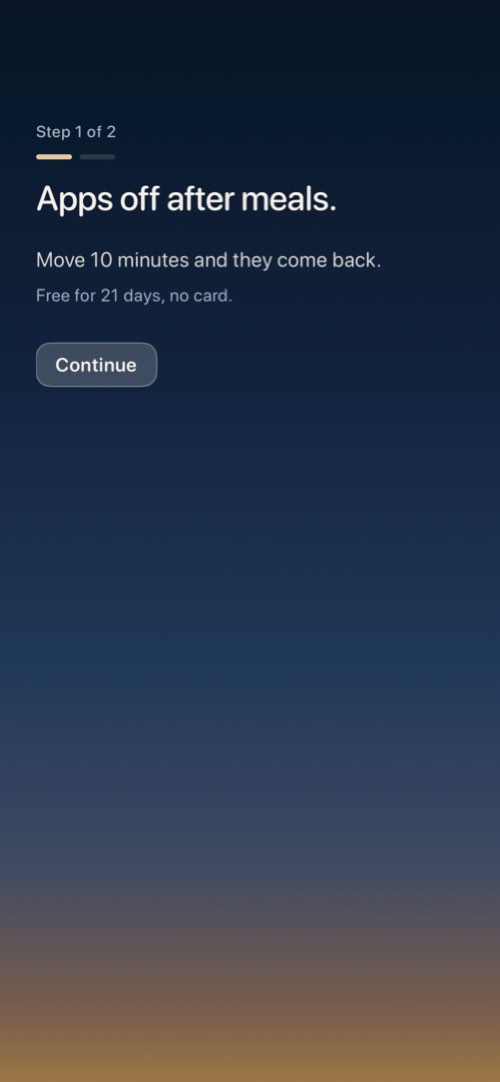
Tap Continue and iOS asks four times, one after another. Allow all four.
- Screen Time. This is what lets SugarWalk switch apps off, and nothing works without it. Apple’s wording sounds broad. SugarWalk never sees which apps you pick or how you use your phone, only how many you picked.
- Motion & Fitness. How your minutes of moving are counted.
- Notifications. One when a meal’s apps go away, one when you’ve moved enough to bring them back, and one two days before the beta ends for you.
- Health. Lets an Apple Watch count: its workouts, and its steps when your phone is somewhere else. Tap Turn On All, then Allow. Pushes and Wheelchair Distance are for wheelchair users. Turning them on does no harm. SugarWalk only reads, never writes, and nothing leaves your phone. No watch? Skipping it is fine.
Tapped Don’t Allow on Screen Time? Open SugarWalk and tap Try again.
Turned some Health rows off and want them on? iOS Settings → Privacy & Security → Health → SugarWalk → Turn On All. SugarWalk can’t ask a second time.
Which apps to pick
- The ones you reach for without thinking: social media, video, news, games. You can pick a whole category at once.
- Leave out anything urgent: messaging, phone, maps, banking, medical apps.
- Change them any time: SugarWalk → Settings → Apps to block.
What a meal looks like
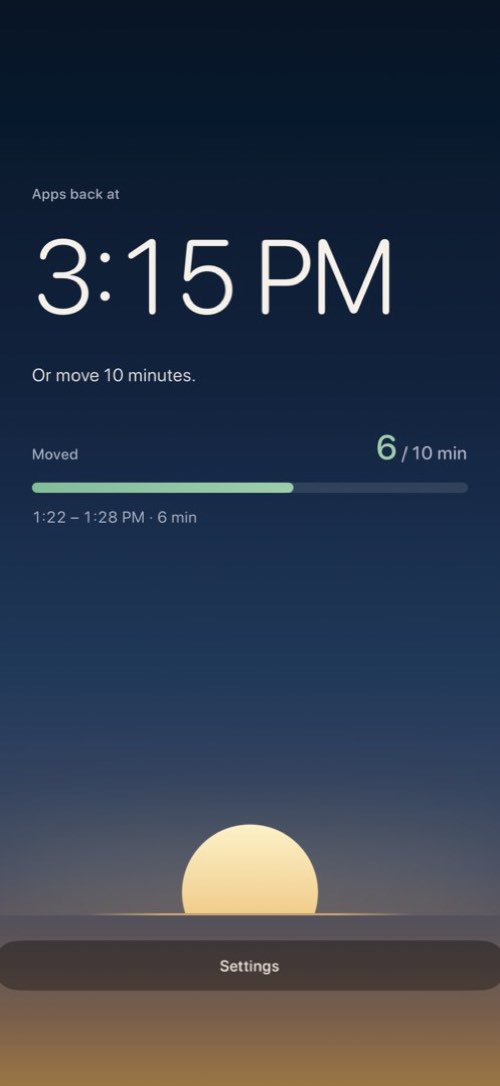
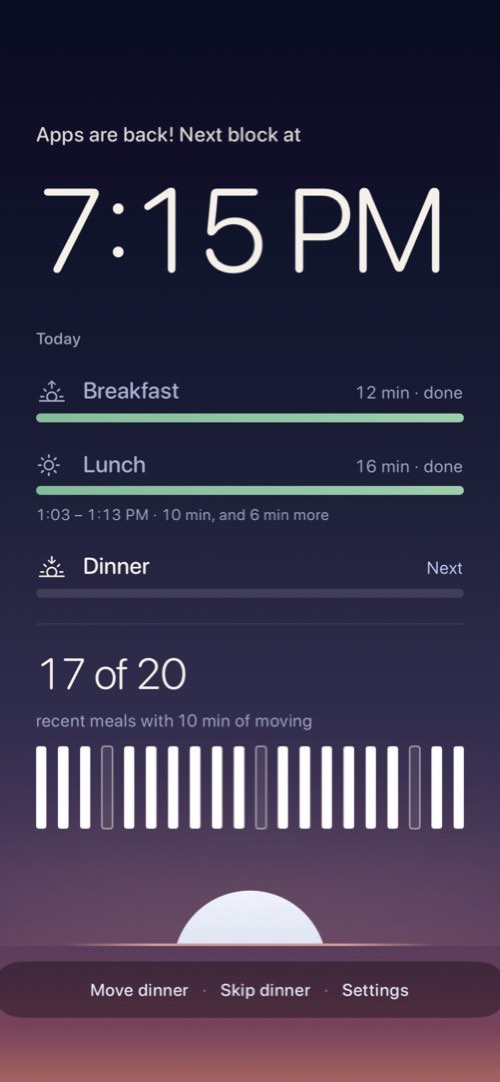
- About 15 minutes after each meal time, one notification: your apps are away. The apps you picked stay off for up to two hours.
- Tap one of them and you see SugarWalk’s screen: when they come back, Or move 10 minutes, and Check my minutes.
- Move for 10 minutes. It doesn’t have to be all at once.
- Then tap a blocked app and they’re back on the spot, with “Nice — that’s 10 minutes.” If you don’t tap, SugarWalk notices on its own within about half an hour.
- Didn’t move? They come back by themselves two hours after they went away. Never later.
What counts as moving
- Walking, running, cycling, indoors or out. Stairs, a treadmill and laps of the house all count.
- The phone has to be on you: a pocket, your hand, a bag you’re carrying. On a desk it sees nothing.
- An Apple Watch workout counts too, if you allowed Health.
- Not counted: a car ride, or jumping and dance games with only the phone. Start a workout on an Apple Watch for those.
The full list is on the home page.
Meal times, skipping, and eating late
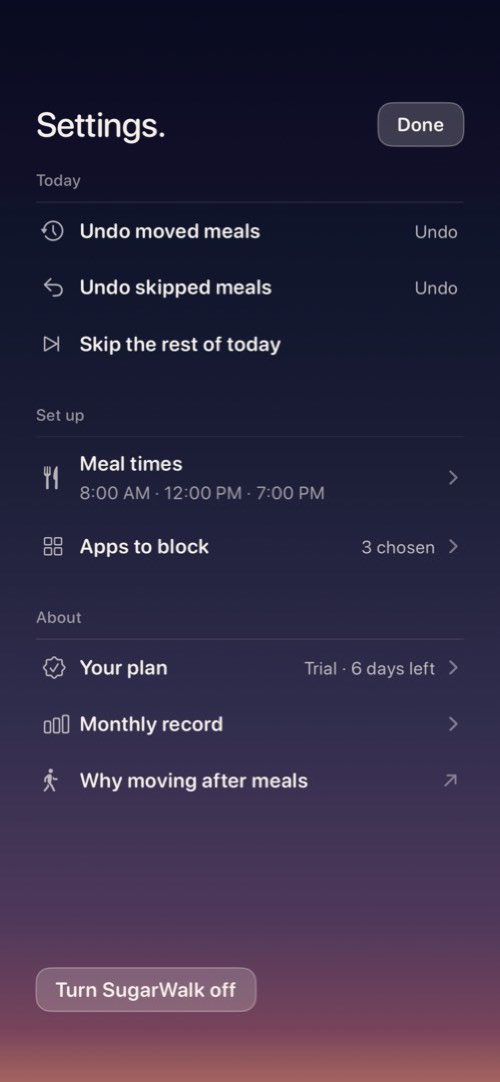
- Breakfast 8 AM, lunch noon, dinner 7 PM. Change them or switch one off in Settings → Meal times, which is also where weekends can be turned off.
- Eating later or earlier today? On SugarWalk’s screen, tap Move dinner (or that meal’s name) and pick a time. Today only.
- Not eating, or out? Tap Skip dinner, or Settings → Skip the rest of today. Both can be undone in Settings.
- Need your apps while they’re away? Settings → Skip the rest of today brings them back now.
Sending feedback
Feedback goes through TestFlight, not through SugarWalk, which has no feedback button and never connects to the internet. TestFlight passes it to me, and to Apple.
From any screen, with a screenshot (best):
- Take a screenshot: side button + volume up.
- Tap the small preview in the bottom-left corner.
- Circle the problem if you like, then tap Done.
- Tap Share Beta Feedback.
- One line: what you were doing, what you expected, what happened instead.
- Add your email, or I can’t reply. Then Submit.
Or from the TestFlight app: tap SugarWalk → Send Beta Feedback. You can attach a screenshot from Photos with Include Screenshot. Add your email, then Submit.
If SugarWalk crashes, TestFlight asks whether to send the details. Say yes, and add a line about what you were doing.
Something longer? Email [email protected].
Most useful to hear: apps that stayed off when they shouldn’t have (tell me straight away), a walk that didn’t count, and any word that confused you.
Turning it off, or leaving the beta
- SugarWalk → Settings → Turn SugarWalk off → until tomorrow, or until a date. Apps come back at once.
- Or delete the app. Everything comes back at once.
- Or iOS Settings → Screen Time → Apps With Screen Time Access → SugarWalk → off.
- To leave the beta: delete SugarWalk, then in TestFlight open SugarWalk’s information page and tap Stop Testing.
After 21 days
The beta is free for 21 days from when you first open SugarWalk. Two days before the end you get one notification. Then it stops switching anything off. Nothing is charged, and there’s nothing to buy. Reinstalling doesn’t restart it, so tell me if you reach the end.
Your data
No account, no analytics, and nothing leaves your phone. TestFlight sends Apple crash reports, plus any feedback you choose to send. The details are in the privacy policy.
Something else? Common questions or [email protected].